

Every port on the Mac Mini sits on the back panel, and the M4 generation dropped USB-A entirely, so plugging in a keyboard receiver, a camera card, or a portable SSD means reaching behind the machine every single time. This guide ranks ten hubs and docks on the parameters that decide how well they work on a Mac Mini desk specifically: front-facing port access, real transfer speed across every data port rather than the headline one, display output and refresh rate, storage expansion, thermal behavior and Wi-Fi interference, footprint under or beside the machine, and price. One point shapes the whole ranking. The Mac Mini already ships with HDMI and Gigabit Ethernet on the rear, so a hub that duplicates those two ports adds convenience rather than capability, while the ports Apple left out (USB-A, card readers, cheap internal-speed storage) are what actually change how the machine works day to day.
Smart Choice
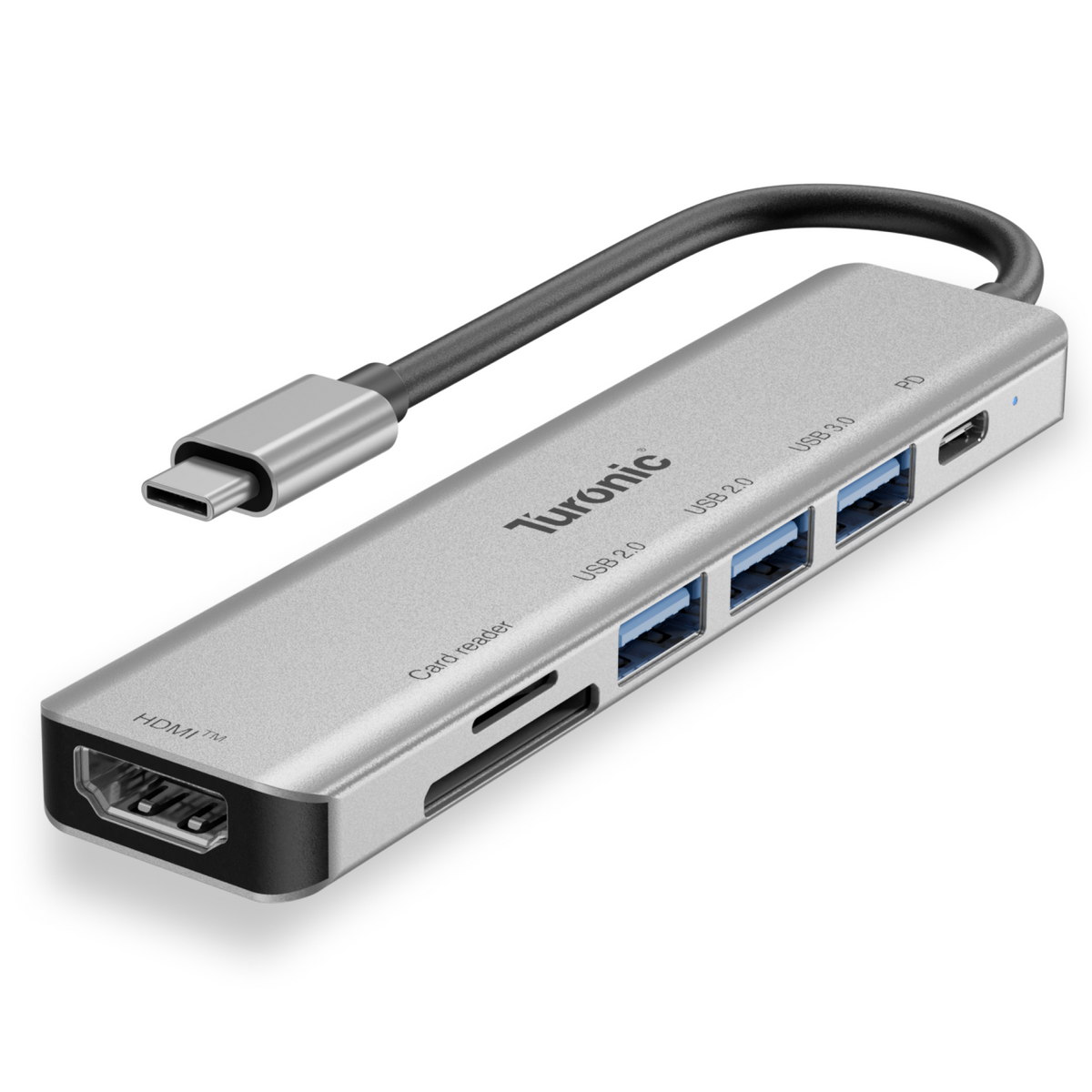
Turonic ConnectHub 7-in-1 YG-2120
Best USB-C Hub for Mac Mini
Brings Back Exactly the Ports Apple Removed
The M4 Mac Mini shipped with no USB-A at all and every port on the back panel. The YG-2120 fixes both problems in one $39.99 move: three USB-A ports, SD and MicroSD readers, and an HDMI output arrive at the front of the desk through a 143 mm integrated cable. Keyboard receivers, flash drives, and camera cards plug in without reaching behind the machine again.
No Duplicate Ports, No Wasted Money
The Mac Mini's own rear HDMI and Gigabit Ethernet already handle display and network, so the hub covers only the gaps Apple left instead of charging you twice for capability the machine has. The 46 g aluminum shell cools passively, adds no meaningful desk footprint, connects to any Mac Mini generation by cable rather than chassis shape, and doubles as a travel hub for a laptop.
What Makes a USB-C Hub Compatible with Mac Mini?

A Mac Mini compatible hub plugs into one rear Thunderbolt port or one front USB-C port and relocates that single connection into several usable ports where your hands are. Compatibility comes down to three questions: what connector standard the hub expects on the host side, where it draws power from, and how it carries video if it carries video at all.
What the Mac Mini Already Gives You
The M4 Mac Mini (2024) has two USB-C ports rated at 10Gbps and a headphone jack on the front, plus three Thunderbolt 4 ports (Thunderbolt 5 on the M4 Pro), HDMI, and Gigabit Ethernet on the rear. The M1 and M2 generations look different: two Thunderbolt/USB4 ports, two USB-A 3.0 ports at 5Gbps, HDMI, Ethernet, and a headphone jack. Anyone shopping for an M4 needs USB-A restored, and a card reader added. Anyone on an M1 or M2 already has two USB-A ports and usually needs storage expansion or front-panel access instead.
The Three Categories You Are Choosing Between
Cable hubs are bus-powered dongles with an integrated USB-C cable, priced between $30 and $140, drawing all their power from the Mac. Stand docks sit directly under the Mac Mini, match its footprint, and usually carry an internal M.2 slot; the M4 versions do not fit the wider M1 and M2 chassis, and the reverse also applies. Powered Thunderbolt docks run from their own AC adapter, cost $130 to $400, and pass the full 40Gbps bus through to downstream devices instead of splitting a single 10Gbps lane.
Power Delivery Does Nothing Here
Almost every hub on the market advertises 85W or 100W pass-through charging, because almost every hub review targets laptop owners. The Mac Mini has its own internal power supply and cannot be charged over USB-C, so PD input on a desktop hub sits unused. Treat that specification as irrelevant when comparing models, and never pay extra for a higher wattage figure.
Display Output Has a Ceiling You Should Know
Video from a cable hub travels over DisplayPort Alt Mode, which caps what the hub can do regardless of what the Mac supports. Budget hubs commonly stop at 4K@30Hz, where cursor movement on a large monitor visibly stutters, while better ones reach 4K@60Hz. The M4 Mac Mini drives up to three displays in total, counting its own HDMI port, so a hub display counts against that budget rather than adding to it.
Mac Mini Hub Comparison - All 10 Models

|
Model |
Form Factor |
Total Ports |
Max Display Output |
Fastest Data Port |
Ethernet |
NVMe Slot |
Price |
|
Turonic ConnectHub 7-in-1 (YG-2120) |
Cable hub |
7 |
HDMI 4K@30Hz |
5 Gbps (USB 3.0) |
No |
No |
$39.99 |
|
Satechi Stand & Hub for Mac Mini M4 |
Stand dock (M4 only) |
5 |
None |
10 Gbps |
No |
Yes, 4TB @ 10Gbps |
$99.99 |
|
CalDigit Thunderbolt Station 4 (TS4) |
Powered TB4 dock |
18 |
DisplayPort 1.4, 8K@30Hz or dual 6K@60Hz |
40 Gbps |
2.5 GbE |
No |
$399.99 |
|
Anker 555 USB-C Hub (8-in-1) |
Cable hub |
8 |
HDMI 4K@60Hz |
10 Gbps |
1 GbE |
No |
~$80 |
|
OWC Thunderbolt 4 Hub (OWCTB4HUB5P) |
Powered TB4 hub |
5 |
Via Thunderbolt: one 8K or two 4K |
40 Gbps |
No |
No |
$129.99 |
|
UGREEN Mac Mini M4 Dock (11-in-1) |
Stand dock (M4 only) |
11 |
None |
10 Gbps |
No |
Yes, 8TB @ 10Gbps |
~$90 |
|
Hiearcool USB-C Hub 8-in-1 |
Cable hub |
8 |
HDMI 4K@60Hz |
5 Gbps |
1 GbE |
No |
~$36 |
|
Qwiizlab 40Gbps Mac Mini M4 |
Stand dock (M4 only) |
8 |
None |
40 Gbps (NVMe) |
No |
Yes, 8TB @ 40Gbps |
~$160 |
|
RayCue Mac Mini M4 Hub & Stand with NVMe |
Stand dock (M4 only) |
8 |
DisplayPort 1.4, up to 8K |
40 Gbps (NVMe) |
No |
Yes, 8TB @ 40Gbps |
~$140 |
|
Belkin Connect Universal USB-C 8-in-1 |
Cable hub |
8 |
Dual HDMI, 4K@60Hz + 4K@30Hz |
10 Gbps |
1 GbE |
No |
$139.99 |
Form factor legend. Cable hub means bus-powered, connected by an integrated USB-C cable, no external power supply. Stand dock means a chassis that sits under the Mac Mini, matches its footprint, and fits only the generation it was designed for. A powered dock means an external AC adapter and a full Thunderbolt controller rather than a shared USB lane. Total port counts follow each manufacturer's own marketing count, which includes the host connection and PD input on several models.
The 10 Best USB-C Hubs for Mac Mini
The ten models below cover three different answers to the same problem, and the right one depends on whether you need ports moved forward, storage added, or a full Thunderbolt bus split. Specifications come from manufacturer documentation and published reviews; where a manufacturer does not publish a figure, it is marked as unpublished rather than estimated.
CalDigit Thunderbolt Station 4 (TS4)

Rating: ⭐⭐⭐⭐⭐
Eighteen ports on a 230W externally powered chassis, including five USB-A and three USB-C ports all running at 10 Gbps, three downstream Thunderbolt 4 connections, a full-size DisplayPort 1.4 output, and 2.5 Gigabit Ethernet. Ports keep supplying power to attached devices even with the host disconnected.
Detailed Specifications:
- Form Factor: Powered Thunderbolt 4 dock, horizontal or vertical
- Host Connection: Thunderbolt 4, 0.8 m certified cable included
- Total Ports: 18
- Display Output: DisplayPort 1.4, up to 8K@30Hz or dual 6K@60Hz over Thunderbolt
- USB-A Ports: 5× USB 3.2 Gen 2 (10 Gbps)
- USB-C Data Ports: 3× USB 3.2 Gen 2 (10 Gbps), plus 3× Thunderbolt 4 (40 Gbps)
- Card Reader: SD and microSD, both UHS-II
- Ethernet: 2.5 GbE
- NVMe/SSD Slot: None
- Power Delivery: 98W to host, 15W per Thunderbolt port, 20W front USB-C, 7.5W remaining ports
- Dimensions & Weight: 141 × 42 mm chassis, weight unpublished
- Warranty: 2-year
- Price: $399.99
+ Pros:
- 2.5GbE, faster than Mac Mini's port
- 10Gbps on all eight USB ports
- Charges devices without host connected
- Built-in DisplayPort, no adapter needed
- Separate audio in and out
- Vertical or horizontal placement
- 230W supply, no port starvation
- Cons:
- $399.99, highest price here
- Large chassis and power brick
- SD slots are UHS-II, not faster
- 98W charging wasted on a desktop
Why it's our choice for Mac Mini:
The only pick that adds network capability the Mac Mini lacks, since 2.5GbE runs past the built-in Gigabit port. Three downstream Thunderbolt ports also let you chain external SSDs and a display without competing for one shared 10Gbps lane.
Turonic ConnectHub 7-in-1 (YG-2120) - Smart Choice for Mac Mini Port Expansion

Rating: ⭐⭐⭐⭐⭐
Seven connections from one USB-C port, including three USB-A ports, SD and MicroSD readers, HDMI, and a 143 mm integrated cable that reaches from a rear Thunderbolt port to the front of the desk. The aluminum body weighs 46 g and adds no meaningful footprint next to the machine.
Detailed Specifications:
- Form Factor: Cable hub, bus-powered
- Host Connection: USB-C (USB 3.2), 143 mm integrated cable
- Total Ports: 7
- Display Output: 1× HDMI, 4K@30Hz / 1080p@120Hz / 720p@120Hz
- USB-A Ports: 1× USB 3.0 (5 Gbps), 2× USB 2.0 (480 Mbps)
- USB-C Data Ports: None (USB-C port is PD input only)
- Card Reader: SD + MicroSD, USB 2.0 speed
- Ethernet: None
- NVMe/SSD Slot: None
- Power Delivery: 100W pass-through (20V/5A), unused on Mac Mini
- Dimensions & Weight: 121 × 29 × 11 mm, 46 g
- Warranty: 1-year limited
- Price: $39.99
+ Pros:
- Three USB-A ports restored
- Dual card readers included
- 46 g, no desk footprint
- Aluminum shell, passive cooling
- $39.99 with 30-day returns
- Works with M1 through M4
- Doubles as a laptop travel hub
- Cons:
- HDMI limited to 4K@30Hz
- Card reader runs at USB 2.0
- Two of three USB-A ports are USB 2.0
Why it's our choice for Mac Mini:
The M4 removed USB-A completely, and this restores three of them plus card slots at the front for $39.99. The Mac Mini's own rear HDMI and Ethernet already handle display and network, so the hub covers exactly the gaps Apple left and nothing you are paying twice for.
Satechi Stand & Hub for Mac Mini M4

Rating: ⭐⭐⭐⭐⭐
An aluminum chassis matching the M4's exact 5-inch footprint, with front-facing USB-A ports, a UHS-II SD reader, and an internal M.2 slot taking drives up to 4TB. A cutout on the underside reaches the M4's bottom-mounted power button. Reviewers have measured reduced Wi-Fi throughput with the Mac Mini seated on the stand.
Detailed Specifications:
- Form Factor: Stand dock, M4 and M4 Pro only
- Host Connection: USB-C to rear port, short integrated cable
- Total Ports: 5
- Display Output: None
- USB-A Ports: 2× USB 3.2 (10 Gbps), 1× USB-A 2.0 (480 Mbps)
- USB-C Data Ports: None
- Card Reader: SD, UHS-II, up to 312 MB/s
- Ethernet: None
- NVMe/SSD Slot: M.2 NVMe PCIe, 2230/2242/2260/2280, up to 4TB at 10 Gbps
- Power Delivery: N/A
- Dimensions & Weight: Approximately 5 × 5 × 0.8 in, weight unpublished
- Warranty: 2-year limited
- Price: $99.99
+ Pros:
- Zero added desk footprint
- Screwdriver and thermal pad included
- Power button cutout underneath
- Two 10Gbps USB-A ports
- UHS-II reader at 312 MB/s
- Bottom vents preserve fan airflow
- Cons:
- Wi-Fi attenuation reported by testers
- No Ethernet or HDMI
- Rejects heatsink and double-sided SSDs
- Incompatible with M1 and M2
- Third USB-A port is USB 2.0
Why it's our choice for Mac Mini:
Storage and front-panel access solved in one purchase, sized to the M4 exactly. A 1TB NVMe drive costs a fraction of Apple's factory storage step, and the 10Gbps enclosure sustains speeds high enough for photo libraries and Time Machine.
Anker 555 USB-C Hub (8-in-1)

Rating: ⭐⭐⭐⭐☆
Eight ports on a 4.4 oz body, with 10 Gbps maintained across the USB-C port and both USB-A ports rather than dropped to 5 Gbps on USB-A the way most hubs in this bracket do. HDMI reaches 4K@60Hz on DisplayPort 1.4 hosts. The 7.48-inch cable is fixed to the hub.
Detailed Specifications:
- Form Factor: Cable hub, bus-powered
- Host Connection: USB-C, 7.48 in integrated cable
- Total Ports: 8
- Display Output: 1× HDMI, 4K@60Hz on DP 1.4 hosts, 4K@30Hz on DP 1.2
- USB-A Ports: 2× USB 3.2 Gen 2 (10 Gbps)
- USB-C Data Ports: 1× USB 3.2 Gen 2 (10 Gbps)
- Card Reader: SD and microSD, UHS-I
- Ethernet: 1 GbE
- NVMe/SSD Slot: None
- Power Delivery: 85W pass-through max, 15W consumed by hub
- Dimensions & Weight: 0.6 in thick, 4.4 oz
- Warranty: 18-month
- Price: Around $80 list, frequently discounted below $50
+ Pros:
- 10Gbps on every data port
- 4K@60Hz HDMI output
- Plug and play on macOS
- 4.4 oz, doubles as travel hub
- Dual card slots, SD and microSD
- Gigabit Ethernet included
- Heavily discounted most months
- Cons:
- Runs warm under full load
- Card readers limited to UHS-I
- No audio jack
- No Linux support
Why it's our choice for Mac Mini:
Uniform 10 Gbps matters on a desktop where an external SSD often lives on a USB-A port permanently. Its HDMI also gives the M4 a second monitor alongside the built-in rear HDMI without a separate adapter.
OWC Thunderbolt 4 Hub (OWCTB4HUB5P)

Rating: ⭐⭐⭐⭐☆
A Thunderbolt-certified splitter that turns one rear port into three downstream Thunderbolt 4 connections at full 40 Gbps each, plus a single 10 Gbps USB-A port. Runs from its own power supply, includes a 31-inch Thunderbolt cable, and carries a Kensington Nano lock slot.
Detailed Specifications:
- Form Factor: Powered Thunderbolt 4 hub
- Host Connection: Thunderbolt 4, 31 in cable included
- Total Ports: 5
- Display Output: Via Thunderbolt, one 5K/6K/8K display or two 4K displays
- USB-A Ports: 1× USB 3.2 Gen 2 (10 Gbps)
- USB-C Data Ports: 3× Thunderbolt 4 downstream (40 Gbps)
- Card Reader: None
- Ethernet: None
- NVMe/SSD Slot: None
- Power Delivery: 60W to host, external supply included
- Dimensions & Weight: Unpublished
- Warranty: 2-year limited
- Price: $129.99
+ Pros:
- Full 40Gbps per downstream port
- Thunderbolt certified for macOS
- Supports independent daisy chains
- Adjustable LED brightness
- Kensington Nano lock slot
- Works with USB-C hosts too
- Cons:
- One USB-A port only
- No card reader or Ethernet
- No storage enclosure
- Requires mains power outlet
Why it's our choice for Mac Mini:
Three rear Thunderbolt ports fill quickly once a display, a RAID enclosure, and an audio interface are connected. This adds three more at native speed, which no bus-powered hub in this list can do.
UGREEN Mac Mini M4 Dock (11-in-1)

Rating: ⭐⭐⭐⭐☆
Eleven ports in a stand sized to the M4, combining three 10 Gbps USB-A ports, two 5 Gbps USB-A ports, two 10 Gbps USB-C ports, a card reader, and an M.2 slot accepting drives up to 8TB. Conductive paint shielding is applied inside to limit 5 GHz interference.
Detailed Specifications:
- Form Factor: Stand dock, M4 and M4 Pro only
- Host Connection: USB-C to rear port, 4 cm integrated cable
- Total Ports: 11
- Display Output: None on this model
- USB-A Ports: 3× USB 3.2 (10 Gbps), 2× USB 3.0 (5 Gbps)
- USB-C Data Ports: 2× USB 3.2 (10 Gbps), no video or charging
- Card Reader: SD and TF, up to 104 MB/s
- Ethernet: None
- NVMe/SSD Slot: M.2 NVMe, 2230/2242/2260/2280, up to 8TB at 10 Gbps
- Power Delivery: Optional external adapter for multi-device loads
- Dimensions & Weight: Unpublished
- Warranty: 2-year minimum
- Price: Around $90, discounted near $60 regularly
+ Pros:
- Eleven ports, most in category
- Wi-Fi shielding built into chassis
- Supports 8TB drives, double Satechi
- Power button lever underneath
- Anti-slip silicone base pads
- Five USB-A ports total
- 2-year UGREEN warranty
- Cons:
- No video output at all
- Card reader capped at 104 MB/s
- USB-C ports carry data only
- Incompatible with M1 and M2
- External adapter advised under load
Why it's our choice for Mac Mini:
Port count is the argument here. Five USB-A ports plus two USB-C ports cover a wired keyboard, mouse, printer, dongle, and two drives at once, which removes any reason to touch the rear panel again.
RayCue Mac Mini M4 Hub & Stand with NVMe

Rating: ⭐⭐⭐⭐☆
The only stand dock here combining a 40 Gbps M.2 enclosure with a DisplayPort 1.4 video output, splitting ports between the front (two 10 Gbps USB-A, one 10 Gbps USB-C, SD and TF 4.0) and the rear (DisplayPort, audio, a second 40 Gbps USB-C). Ships with its own 65W adapter.
Detailed Specifications:
- Form Factor: Stand dock, M4 and M4 Pro only
- Host Connection: USB-C at 40 Gbps to rear Thunderbolt port
- Total Ports: 8
- Display Output: DisplayPort 1.4, up to 8K
- USB-A Ports: 2× USB 3.2 (10 Gbps)
- USB-C Data Ports: 1× USB 3.2 front (10 Gbps), 1× USB-C rear at 40 Gbps with 15W output
- Card Reader: SD and TF 4.0, up to 312 MB/s
- Ethernet: None
- NVMe/SSD Slot: M.2 NVMe, up to 8TB at 40 Gbps
- Power Delivery: 65W adapter included for the dock
- Dimensions & Weight: Unpublished
- Warranty: Varies by seller
- Price: Around $140, configuration dependent
+ Pros:
- 40Gbps storage plus DisplayPort
- 65W adapter included in box
- Ports split front and rear
- SD 4.0 reader at 312 MB/s
- Supports 8TB drives
- Additional 40Gbps downstream port
- Cons:
- Sold in several confusing variants
- Pricing swings by seller
- No Ethernet port
- Incompatible with M1 and M2
- Warranty terms depend on retailer
Why it's our choice for Mac Mini:
Fast storage and a third display output in one chassis, which no other stand dock here manages. The rear DisplayPort works alongside the Mac Mini's own HDMI and Thunderbolt outputs for a genuine three-screen desk.
Qwiizlab 40Gbps Mac Mini M4

Rating: ⭐⭐⭐⭐☆
A vertical stand with a USB4 enclosure running the internal M.2 drive at 40 Gbps instead of the usual 10 Gbps ceiling, alongside two 10 Gbps USB-C ports, a 10 Gbps USB-A port, two USB 2.0 ports, SD 4.0 card slots, and an analog audio output. Qwiizlab has published test speeds above 3,000 MB/s with a 4TB Samsung 990 EVO Plus.
Detailed Specifications:
- Form Factor: Stand dock, vertical, M4 and M4 Pro only
- Host Connection: USB-C to rear Thunderbolt port
- Total Ports: 8
- Display Output: None
- USB-A Ports: 1× USB 3.2 (10 Gbps), 2× USB 2.0
- USB-C Data Ports: 2× USB 3.2 (10 Gbps)
- Card Reader: SD and TF 4.0, up to 312 MB/s
- Ethernet: None
- NVMe/SSD Slot: M.2 NVMe PCIe, up to 8TB at 40 Gbps
- Power Delivery: N/A
- Dimensions & Weight: Unpublished
- Warranty: Varies by seller
- Price: Around $160, varies widely between sellers
+ Pros:
- 40Gbps enclosure, four times faster
- Measured above 3,000 MB/s
- SD 4.0 reader at 312 MB/s
- Vertical layout exposes power button
- Thermal pads for both SSD types
- 3.5 mm audio output included
- Cons:
- No video output
- Vertical stance raises tipping risk
- No internal heatsink room
- Pricing inconsistent across sellers
- Incompatible with M1 and M2
Why it's our choice for Mac Mini:
The 40 Gbps enclosure removes the 10 Gbps bottleneck that limits nearly every other stand dock to roughly 1,000 MB/s. Video editors working from an external scratch disk get internal-drive performance for the price of a bare NVMe.
Hiearcool USB-C Hub 8-in-1

Rating: ⭐⭐⭐⭐☆
A budget cable hub that still delivers 4K@60Hz HDMI, Gigabit Ethernet, 100W pass-through, and three USB-A ports. Its GL823K controller has been measured running cooler than comparable hubs at this price, which matters because heat drives most failures in inexpensive bus-powered hubs.
Detailed Specifications:
- Form Factor: Cable hub, bus-powered
- Host Connection: USB-C, integrated cable
- Total Ports: 8
- Display Output: 1× HDMI, 4K@60Hz
- USB-A Ports: 3× USB 3.0 (5 Gbps)
- USB-C Data Ports: None (USB-C port is PD input only)
- Card Reader: SD and TF, up to 104 MB/s, one slot active at a time
- Ethernet: 1 GbE
- NVMe/SSD Slot: None
- Power Delivery: 100W pass-through, unused on Mac Mini
- Dimensions & Weight: Unpublished
- Warranty: 2-year with 24/7 support
- Price: Around $36
+ Pros:
- 4K@60Hz at budget pricing
- Three USB-A ports
- Cooler-running GL823K controller
- Gigabit Ethernet included
- 2-year warranty at this price
- Owners report multi-year reliability
- Cons:
- USB-A capped at 5 Gbps
- Card slots cannot run simultaneously
- Brief HDMI blackout on connect
- No audio jack
- No USB-C data port
Why it's our choice for Mac Mini:
Three USB-A ports at the front are the practical benefit, since the M4 offers none. Paying roughly $36 for that plus a 60Hz display output makes sense for anyone who never moves large files across external SSDs.
Belkin Connect Universal USB-C 8-in-1 Dual Display Core Hub

Rating: ⭐⭐⭐☆☆
Two HDMI outputs driven by a Silicon Motion display controller, running one screen at 4K@60Hz and the second at 4K@30Hz, plus Gigabit Ethernet, two 10 Gbps USB-C ports, and two 5 Gbps USB-A ports on a 22 cm tethered cable. Dual output depends on a downloadable driver.
Detailed Specifications:
- Form Factor: Cable hub, bus-powered
- Host Connection: USB-C, 22 cm tethered cable
- Total Ports: 8
- Display Output: 2× HDMI, 4K@60Hz on the first, 4K@30Hz on the second
- USB-A Ports: 2× USB 3.2 Gen 1 (5 Gbps)
- USB-C Data Ports: 2× USB 3.2 Gen 2 (10 Gbps)
- Card Reader: None
- Ethernet: 1 GbE
- NVMe/SSD Slot: None
- Power Delivery: 100W pass-through input, unused on Mac Mini
- Dimensions & Weight: 148 × 68 × 19 mm, weight unpublished
- Warranty: 2-year limited
- Price: $139.99
+ Pros:
- Two HDMI outputs on one connection
- Two 10Gbps USB-C data ports
- Gigabit Ethernet included
- Housing uses recycled materials
- 2-year Belkin warranty
- Free dock utility software
- Cons:
- Second display capped at 30Hz
- Driver install required for dual output
- No card reader at $139.99
- USB-A limited to 5 Gbps
- Customer rating sits at 3.6/5
Why it's our choice for Mac Mini:
Two extra HDMI outputs suit anyone already using the Mac Mini's HDMI and a Thunderbolt display and still needing more screens. The driver dependency and the 30Hz second output make it a specialist pick rather than a general one.
How to Choose a USB-C Hub for Mac Mini

Form factor decides more than any specification, because the three categories solve three different problems and no single model covers all of them. Work out whether you need ports moved forward, storage added, or Thunderbolt lanes multiplied, then compare within that category alone.
Start With What Your Mac Mini Already Has
The M4 and M4 Pro ship with HDMI and Gigabit Ethernet on the rear, so a hub that duplicates both charges you for capability already sitting on the machine. Check your generation first: M1 and M2 owners already have two USB-A ports, while M4 owners have none at all. That single difference changes which hub makes sense more than brand or port count does.
Front-Facing Port Access
Rear-only ports create a daily friction that specification sheets never capture, since swapping a camera card or plugging in a flash drive means turning the machine or reaching blind behind it. A hub with a short integrated cable, 4 cm to 20 cm, sits at the front of the desk and stays there. Stand docks solve the same problem differently by placing ports along the front edge of a chassis under the Mac.
Data Speed - 5Gbps, 10Gbps, 40Gbps
Read the speed rating for every port rather than the headline number, because many hubs run 10 Gbps on the USB-C port and quietly drop USB-A to 5 Gbps or even 480 Mbps. At 5 Gbps, a 10GB video file moves in roughly 35 seconds; at 10 Gbps, the same transfer takes around 12. The 40 Gbps stand docks bypass that ceiling entirely for internal NVMe drives, reaching past 3,000 MB/s where 10 Gbps enclosures stop near 1,000 MB/s.
Display Output and Refresh Rate
Budget hubs frequently cap HDMI at 4K@30Hz, and the difference shows immediately in cursor movement and scrolling on a large monitor. Anything intended as a primary display connection should carry 4K@60Hz. Remember that hub video counts against the three-display total the M4 supports, since the Mac Mini's own HDMI already occupies one slot.
Storage Expansion Instead of Apple's Pricing
Apple sets a steep price on internal storage steps and seals the drive afterward, which makes an NVMe enclosure the practical alternative for anyone who bought the base configuration. A 1TB drive costs a fraction of the factory upgrade and installs in about five minutes with the screwdriver and thermal pad included in most stand docks. Verify drive compatibility before buying, because these enclosures reject heatsink-equipped and double-sided SSDs.
Heat, Wi-Fi Interference, and Footprint
Heat causes most failures in bus-powered hubs, so aluminum housings and cooler controller chips such as the GL823K matter for anything running continuously on a desk. Stand docks introduce a different concern, since several models measurably weaken Wi-Fi throughput when the Mac Mini sits directly on top of aluminum; UGREEN addresses this with conductive paint shielding, while others do not. Budget accordingly: around $36 to $40 restores USB-A ports and card readers, $90 to $160 adds NVMe storage in a chassis matched to the machine, and $130 to $400 buys powered Thunderbolt hardware with 2.5GbE or additional 40 Gbps lanes.
FAQ
Do I need a USB-C hub for Mac Mini M4 if I only use a keyboard and mouse?
Wireless peripherals connect over Bluetooth and need no hub at all. A USB-C hub for Mac Mini becomes useful once you add wired accessories, card readers, or external drives, since the M4 dropped USB-A entirely and puts every remaining port on the back panel.
Should I connect the hub to a front USB-C port or a rear Thunderbolt port?
Use a rear Thunderbolt port for anything carrying video or a fast external drive, since those ports run the full 40 Gbps bus. The front USB-C ports operate at 10 Gbps, which suits card readers and peripherals but limits an NVMe enclosure to roughly a quarter of its potential speed.
Will a Mac Mini M4 dock fit my M1 or M2 Mac Mini?
No. The M4 chassis measures about 5 inches square, while the M1 and M2 measure 7.7 inches, so stand docks built for one generation physically cannot fit the other. Cable hubs work across all generations because they connect by cable rather than by shape.
Does Power Delivery matter on a Mac Mini hub?
The Mac Mini runs from its own internal power supply and cannot draw charge over USB-C, so PD input sits unused on a desktop. Ignore wattage figures when comparing models and put that budget toward data speed or storage instead.
Can I boot macOS from an SSD installed in a hub enclosure?
Yes. macOS supports booting from external USB-C and Thunderbolt volumes, and a fast NVMe drive in a 40 Gbps enclosure performs close to internal storage. Test the installation before relying on it, since enclosure firmware quality varies between brands.
Do I still need a USB-C hub for Mac Mini if it already has HDMI and Ethernet?
Yes, for different reasons than a MacBook owner would. The Mac Mini covers display and network on its own, so a hub earns its place by restoring USB-A ports, adding a card reader, moving connections to the front of the desk, or expanding storage.
Which USB-C Hub for Mac Mini Should You Buy?
Most Mac Mini owners are solving a port location problem rather than a bandwidth problem, and the Turonic ConnectHub 7-in-1 (YG-2120) answers it at $39.99. Three USB-A ports come back after the M4 removed them, SD and MicroSD readers sit within reach, and the 143 mm integrated cable brings all of it to the front of the desk while the Mac Mini's own rear HDMI and Ethernet keep handling display and network duty. At 46 g in an aluminum shell, it adds nothing to the footprint and works across M1, M2, and M4 machines.
Three alternatives cover the cases it does not. Choose the CalDigit TS4 at $399.99 when you need 2.5GbE, eighteen ports, and three downstream Thunderbolt connections for a professional workstation. Choose the Satechi Stand & Hub at $99.99 when the base 256GB configuration has already filled up, and you want storage plus front ports under an M4-sized chassis. Choose the Qwiizlab or RayCue 40 Gbps docks when an external scratch disk needs to run past 3,000 MB/s. The decision reduces to one question: whether your bottleneck sits in port location, storage capacity, or bus bandwidth.


